
How to Use Canva Pro to Create a Brand Kit in 15 Minutes
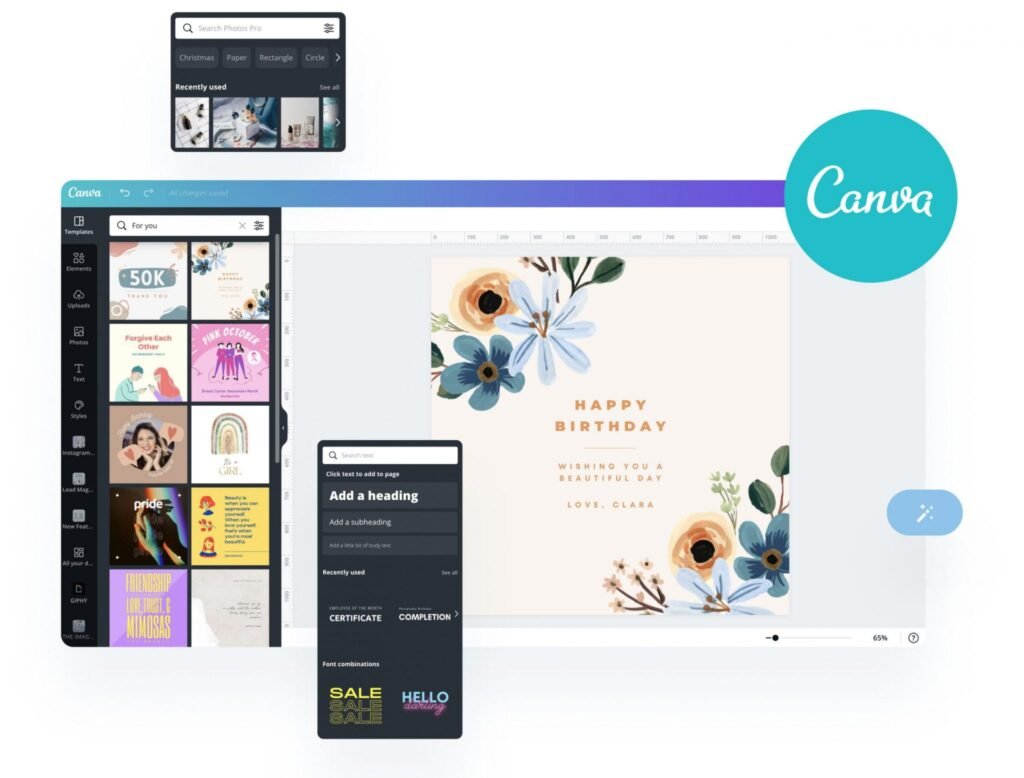
Whether you are running a business or employed in a profession, you may face challenges finding your brand guidelines each time you need to confirm that you are using the correct logo, colors, and fonts. To make this easier, you can store all this information in Canva Pro. It’s a simple way to ensure your branding remains consistent across all materials by using Canva Pro to create and manage your brand kits.
Today, in this article, I will guide you on how to create and use brand kits in Canva. If you are a Canva Pro user, you can create and use brand kits based on your approved brand design. If you’re not yet a Canva Pro user, consider signing up for Canva Pro today and start building your desired designs.
Different companies may have distinct brand looks and feels, and you can easily create and save multiple brand kits with different names. No matter how large or small an organization is, it’s important to have a brand kit managed by your brand management team. Stay with us in this article to learn more about brand kits.
What is a Brand Kit?
A Brand Kit is a collection of all your company’s approved logos, colors, fonts, and other design assets, organized for easy use. In your organization, you likely want all members to use the approved fonts, colors, logos, imagery, photos, and icons without confusion or frustration. By creating a Canva Brand Kit, you can compile and save all of these design elements in one place. Whenever your team members use Canva, they can easily select the approved brand colors, fonts, logos, and images. They won’t need to worry about whether they’re using the latest version or if the colors are correct. All designs saved within the Brand Kit are accessible for your team across the organization. A Brand Kit is a simple and efficient way to ensure your brand assets are easily available during the design process.
Why You Need to Use Brand Kits?
Imagine you’re starting a design project for your company, business, blog post, or as a freelancer, and you need to meet a tight deadline. But before you begin, you have to find key brand information like logos, fonts, the latest version of your logos, the correct brand colors, and typography. Creating a Brand Kit solves all of these challenges. It allows you to easily access and use your approved brand assets, helping you complete your project quickly.
On the other hand, if you work with multiple companies or on multiple projects with different design styles, you can save these assets with distinct names and use them whenever necessary with just a few clicks on your Canva Pro design platform.
Why Use Canva Pro to Create a Brand Kit?
That’s a great question! While you can create Brand Kits manually using other programs, Canva Pro makes it much easier. Below are a few reasons why you should consider using Canva Pro:
* With Canva Pro, you get an all-in-one platform that provides access to design tools, templates, images, and branding features all in one place.
* It’s easy to share and use Brand Kits across your design team, ensuring that everyone in your organization is using the correct brand assets.
* Canva is cloud-based, so you can access your Brand Kits from any device, anywhere.
* Once you’ve set up your Brand Kit, designing becomes faster and easier. You can apply your brand’s logos, colors, and fonts to templates with just a few clicks.
Step-by-step guide to creating a brand kit
To create a brand kit, you need to sign up for Canva Pro or Canva for Teams. After signing up, you can follow these steps to create a brand kit based on the approved design selected by your team.
Brand tab – From the Canva homepage, click on the Brand tab in the left-side panel. This will bring you to the Brand Kits area, where you can create several brand kits.If you don’t see it, check under the Tools section, as it depends on your layout.
Add New – Click on the Add New button in the top-right corner. This will prompt you to enter the name of your new brand kit
Name – Give your brand kit a clear name. This will make it easier to identify.
Logo – Your logo is the face of your brand, so upload it to make it easily accessible in your brand kit. On the Brand Kit page, go to the Logos section, click on the Upload button, and select the logo file from your computer. You can upload color, black-and-white, or transparent PNG versions of your logo.
Brand Colors – Choose your brand colors using a hex code, CMYK values, or Canva’s color picker to find the exact shade. You can set your primary color and then add secondary colors as well.
Fonts – In the Brand Kit section, go to the Brand Fonts area and upload your company’s chosen fonts. Select fonts for each heading and subheading by adjusting font style and size according to your brand style guide. Canva Pro also allows you to upload custom fonts if you have unique typography that reflects your brand identity.
Save and Organize Your Templates – You can save templates that match your brand identity. This ensures you can quickly generate new designs without worrying about brand consistency.
Use Your Brand Kit to Create Designs – Now your brand kit is ready to use. You can start creating new designs in just a few clicks. When starting a new design, either open a template or begin from scratch. From the left toolbar, you’ll see options for Brand Colors, Brand Fonts, and Logos. Simply select the relevant asset to add it to your design. Canva Pro will automatically apply your predefined colors, fonts, and logos to maintain brand consistency.
Conclusion: Using Canva Pro to create a brand kit is simple, yet it’s a powerful way to ensure your designs are always aligned with your brand identity. By setting up your colors, fonts, and logos in Canva Pro, you can save time, improve consistency, and focus on creating high-quality content without hassle.